| NightHawk Groups
|
| In order to work as a group, including signing as the supervisor in NightHawk, you must belong to the same group. Groups are only managed in our customer database, however, if you need to confirm your group membership or need to make changes to your group, please contact Bradford Technologies Sales. |
| Set up permissions
|
- Open Group Permissions
|
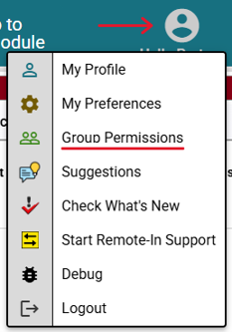
| In the upper-right corner of NightHawk, click Hello [your name], then select Group Permissions from the menu. |
|
- Assign permissions
|
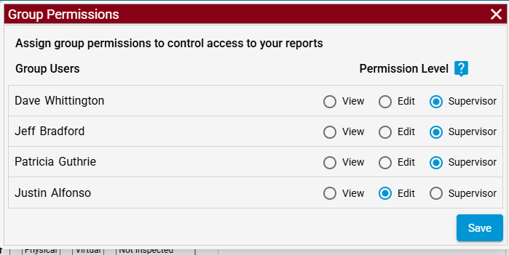
| In the row for each group member, assign the appropriate permission level to your group members. For whoever will sign reports as a supervisor, select Supervisor and Click Save.
|
|
Note: Other group members will also need to assign permissions in their own accounts.
|
|
| Open and sign the report
|
- Open the report
|
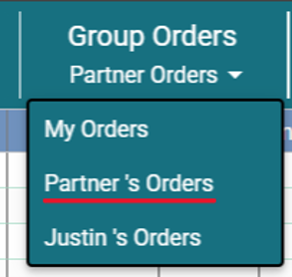
| Once the report is ready for the supervisor to sign, the supervisor can then log in to NightHawk and sign as supervisor. Click Group Orders drop down, select the appraiser to view their orders, and open the report you need to sign. |
|
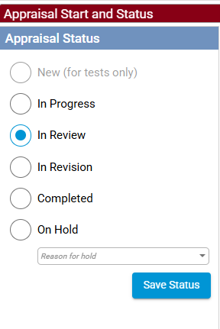
| As a suggestion, the appraiser can set the status of the order to ‘In Review’ using the Status Module. This may make locating the order easier for the supervisor. |
|
| Other group members that are not the supervisor would also be able to open reports and either view or edit reports, based on the permissions they were given. |
- Apply supervisor’s signature
|
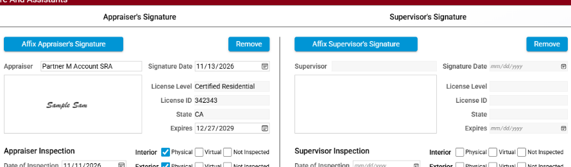
| Open the Signatures module. In the Supervisor’s Signature section, click Affix Supervisor’s Signature. |
|
- Verify both signatures
|
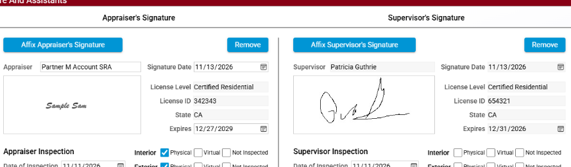
| Confirm that both the appraiser’s signature and the supervisor’s signature appear on the report. |
|