| We've received reports from several clients using Apex 7 who experienced issues with their sketching software over the weekend. After investigation, we've identified that the problems are related to recent Windows 11 update — specifically, KB5064081. |
| Until Apex or Microsoft release an official fix, we wanted to provide a temporary workaround to help you get back up and running. Below is a step-by-step guide on how to uninstall the problematic update. If you're not comfortable performing this on your own, we're happy to assist you during our normal business hours. |
|
| Step-by-Step: Uninstall a Windows 11 Update
|
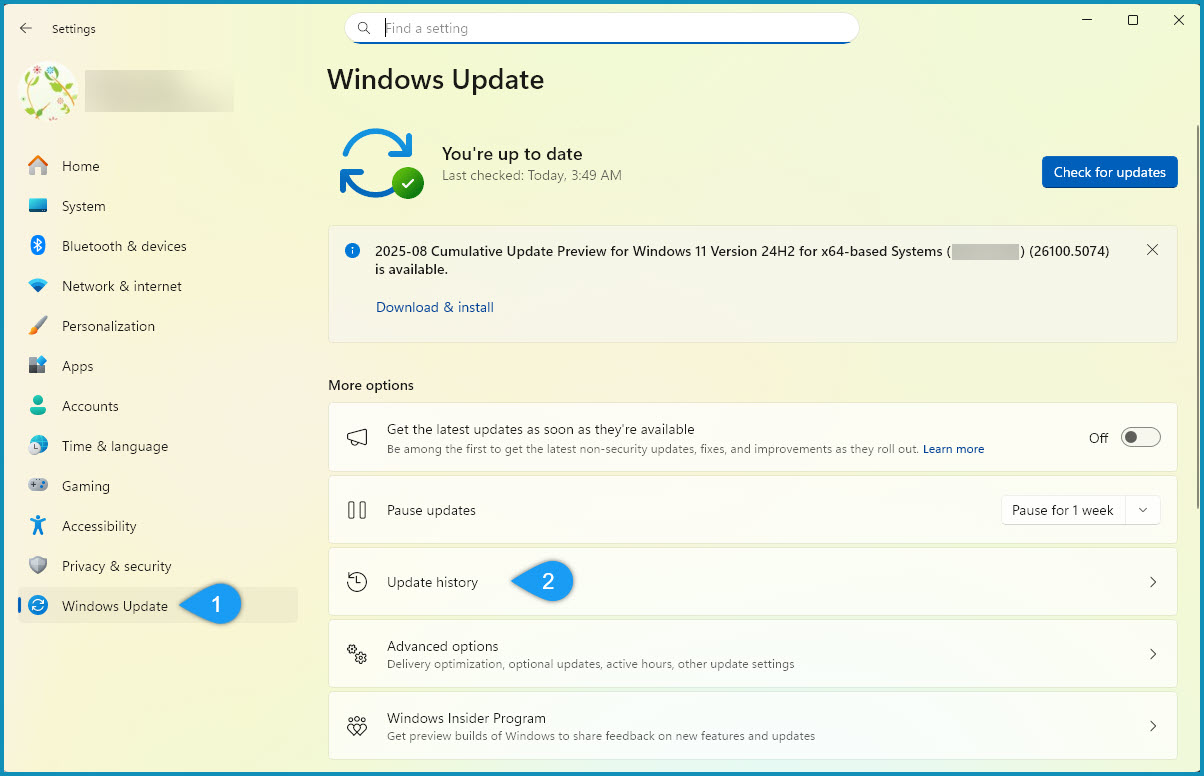
- Open Settings
- From your keyboard press the Windows key + I to open settings.
- Navigate to:
- Windows Update → Update history
|
|
|
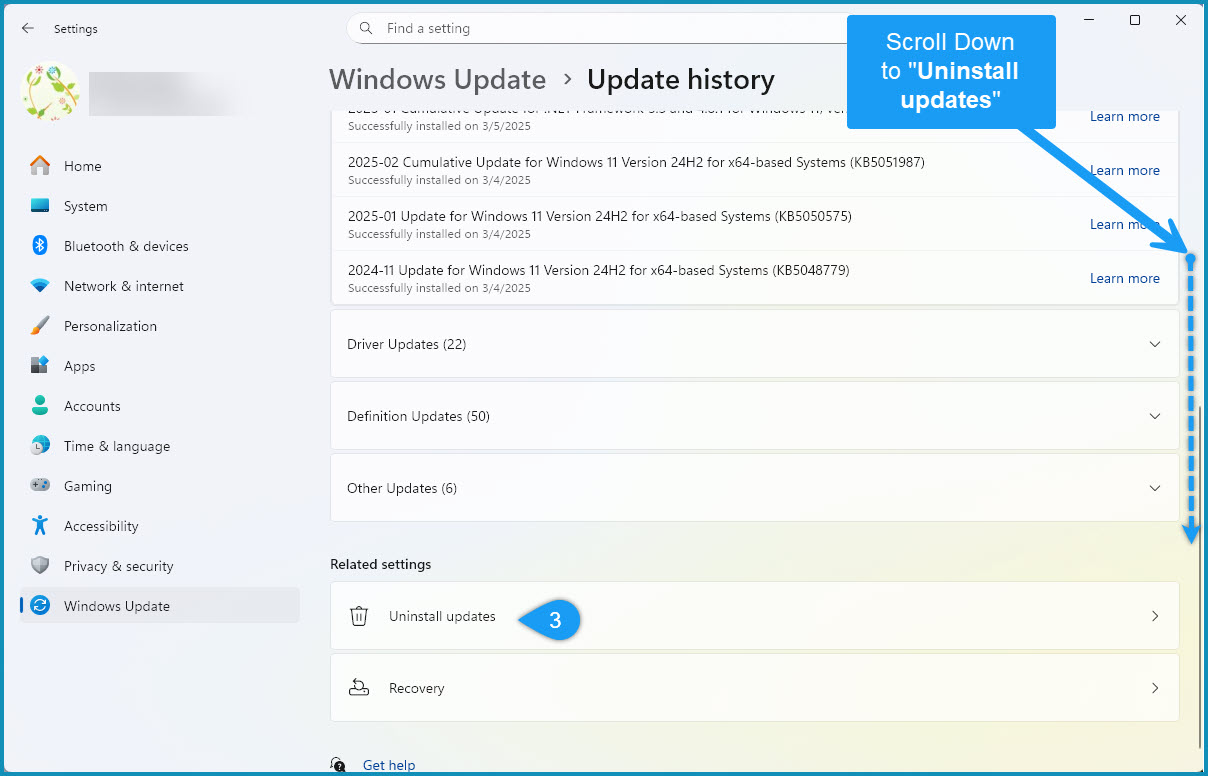
- Open "Uninstall Updates"
- Scroll down and click Uninstall updates under "Related settings."
- This opens a Control Panel window with a list of installed updates.
|
 |
- Uninstall the Problematic Update
- Locate the following update:
— KB5064081
- Click the "Uninstall" button.
|
 |
- Restart Your Computer
- After uninstalling the KB5064081 update, restart your PC to complete the process.
- NOTE: Your computer may run a short update process during reboot to finalize the removal.
|
| If you have any questions or would like assistance, feel free to reach out during business hours. We're here to help.
|